Showing posts with label Booting a forensics image. Show all posts

Friday, August 12, 2022

DIGITAL FORENSICS:Booting a forensics image on a Virtual Machine

DIGITAL FORENSICS: Booting a forensics image on a Virtual Machine


Starting with V9. of OSForensics, booting a forensic image of a system disk as a virtual machine has never been easier.

When performing forensic investigation on an image of a target system drive, it is often necessary to recreate and examine the live environment of the system to acquire all relevant data during the investigation. By running the image as a live system, the investigator can perform a live forensic analysis of the image, allowing for the potential discovery of additional forensic artifacts that may not have been previously uncovered from a traditional static analysis. Finally, because the system is running in a protected virtual environment created from the forensic image file, there is no risk of compromising the target system.


Booting a forensics image on a Virtual Machine

To access this feature from the Start screen, simply click the Boot Virtual Machine icon or module button as shown above.

Users simply need to point OSF to the forensic image file of the target O/S drive, review a few other options and features and click the ‘Boot VM’ button.

Booting a forensics image on a Virtual Machine


Steps

  • 1. Select image file.
  • 2. Choose OS if image is of a multi-boot system.
  • 3. Choose VirtualBox or VM Workstation. (Must be pre-installed)
  • 4. Review technical specifications.
  • 5. Attach any additional disk images.
  • 6. Choose or review VM options and User account to boot.
  • 7. Click “Boot VM”
    Booting a forensics image on a Virtual Machine


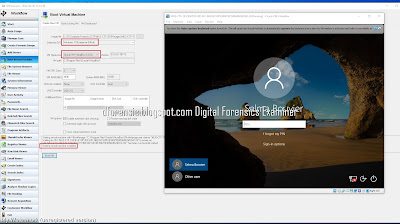
After clicking ‘Boot VM’, the real-time log with begin recording all of the processes taking place behind the scenes. Once completed, your VM software will launch and the selected user account will boot…
Booting a forensics image on a Virtual Machine

Analyzing the Live System

Once the boot process is complete, you may begin analyzing and searching through the live system. In addition to being able to review the Desktop layout, the Recycle Bin, and proprietary files in their native application, this also provides a great visual aid for screenshotting evidence to present to a client or in court when necessary.

Screenshots allow you to capture evidence files and artifacts just as they may have appeared through the eyes of the user. Some examples include…

  • Jumplists (recent webpages, Word docs, etc.)
  • Autorun Apps.
  • Previous custom desktop backgrounds
  • Settings for certain applications (e.g., CCleaner)
  • Search term history from P2P and other applications

Autorun Apps.
Booting a forensics image on a Virtual Machine

Booting a forensics image on a Virtual Machine

A VHD File
Booting a forensics image on a Virtual Machine

Booting a forensics image on a Virtual Machine

Network Drive
Booting a forensics image on a Virtual Machine


Booting a forensic image in VirtualBox with FTK Imager


Forensic Image Virtual Boot:Learn how to create a Virtual Machine from a Forensic Disk Image


Credit:osforensics

 หมายเหตุ:เนื้อหาในเว็บไซต์นี้มีขึ้นเพื่อวัตถุประสงค์ในการให้ข้อมูลและเพื่อการศึกษาเท่านั้น


* หากมีข้อมูลข้อผิดพลาดประการใด ขออภัยมา ณ ที่นี้ด้วย  รบกวนแจ้ง Admin เพื่อแก้ไขต่อไป
ขอบคุณครับ

#WindowsForensic #computerforensic #ComputerForensics #dfir #forensics
#digitalforensics #investigation #cybercrime #fraud


Saturday, January 23, 2021

Digital Forensics:Booting a forensic image in VirtualBox with FTK Imager

Digital Forensics:Booting a forensic image in VirtualBox with FTK Imager

How to take a forensic copy of a hard drive, make a copy with FTK Imager, convert the image to a .vmdk file with VBoxManage, and boot it in a virtual machine with VirtualBox.

แนะนำวิธิการ  convert forensic image  ไปเป็น Virtual Machine โดยใช้ VirtualBox  
เครื่องมือที่ใช้
    - Image File  SCHARDT.001
    - Oracle VirtualBox
    - FTK Imager

ทำการ  Download  Image Hacking Case  

Booting a forensic image
ทำการเปิด Image File > Schardt.001 
Booting a forensic image

ทำการ Crate Image ใหม่ Raw (DD)
Booting a forensic image

Booting a forensic image


Image Fragment Size = 0   
Booting a forensic image


เมื่อได้ไฟล์ CF500.001 แล้ว

พิมคำสั่ง เพื่อทำการ convert File raw to VMDK

H:"C:\Program Files\Oracle\VirtualBoxVBoxManage.exe" convertfromraw CF500.001 case.vmdk --format VMDK

Booting a forensic image

H:"C:\Program Files\Oracle\VirtualBoxVBoxManage.exe" convertfromraw CF500.001 case.vmdk --format VMDK

ผลลัพธ์ที่ได้คือ ไฟล์ case.vmdk

สร้าง VirtualBox

Booting a forensic image
เปิดไฟล์ case.vmdk
Booting a forensic image

ทำการ เปิด Vbox

Booting a forensic image


Booting a forensic image in VirtualBox with FTK Imager


 หมายเหตุ:เนื้อหาในเว็บไซต์นี้มีขึ้นเพื่อวัตถุประสงค์ในการให้ข้อมูลและเพื่อการศึกษาเท่านั้น


* หากมีข้อมูลข้อผิดพลาดประการใด ขออภัยมา ณ ที่นี้ด้วย  รบกวนแจ้ง Admin เพื่อแก้ไขต่อไป
ขอบคุณครับ

#WindowsForensic #computerforensic #ComputerForensics #dfir #forensics
#digitalforensics #investigation #cybercrime #fraud

Volatility Lab

Volatility Lab  Image Wanna.vmem P.73 windows.info #python3  vol.py   -f '/home/kali/Desktop/Wanna/Wanna-MEM.vmem' windows.info     ...